How to Add the United Manufacturing Hub Helm Repo to OpenLens / UMHLens
To use third-party repositories like the United Manufacturing Hub, you first need to add them to OpenLens / UMHLens. Fortunately, adding a repository to Lens is a simple process that can be accomplished in a few steps.
Instructions
Option 1
-
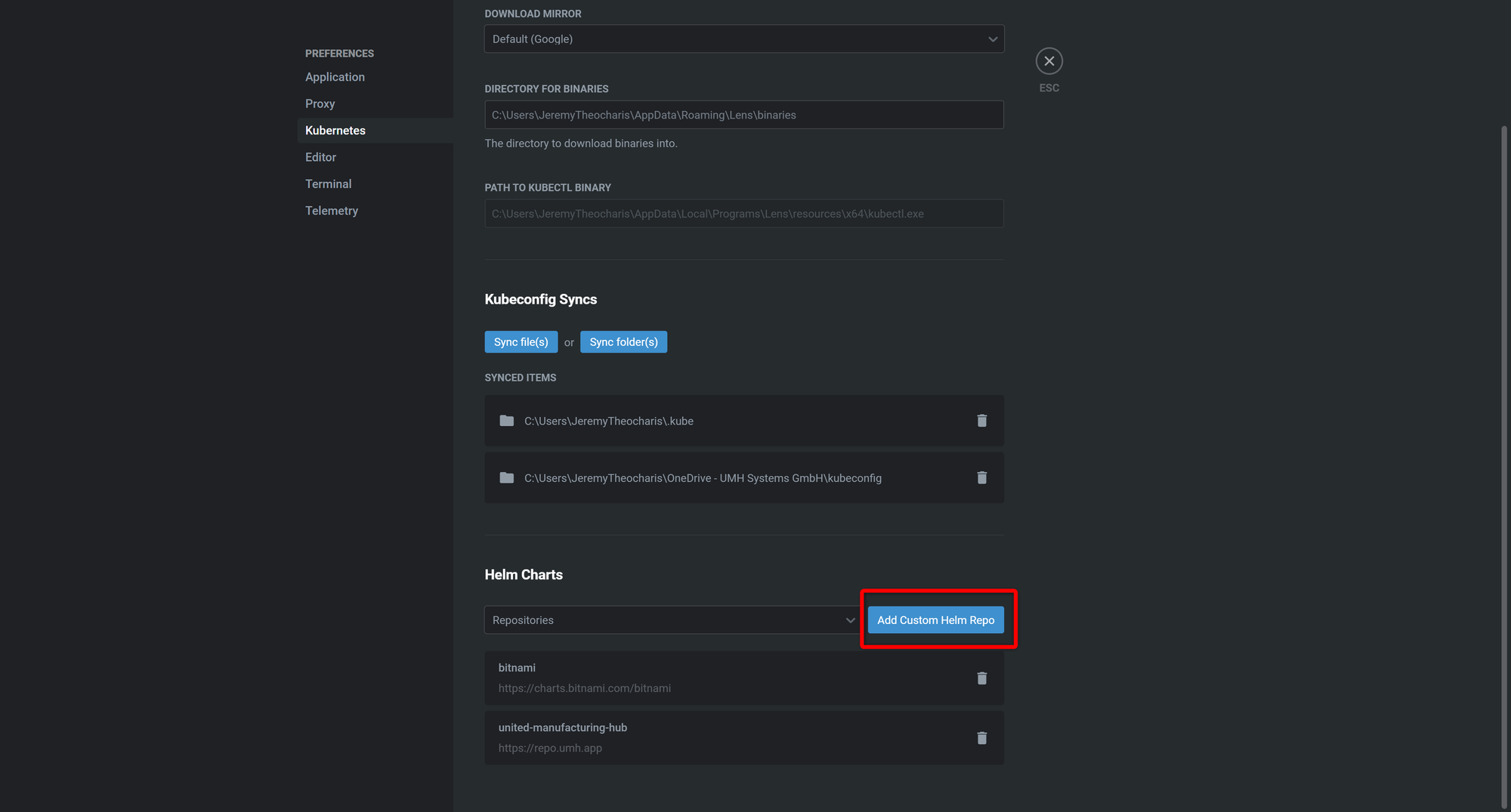
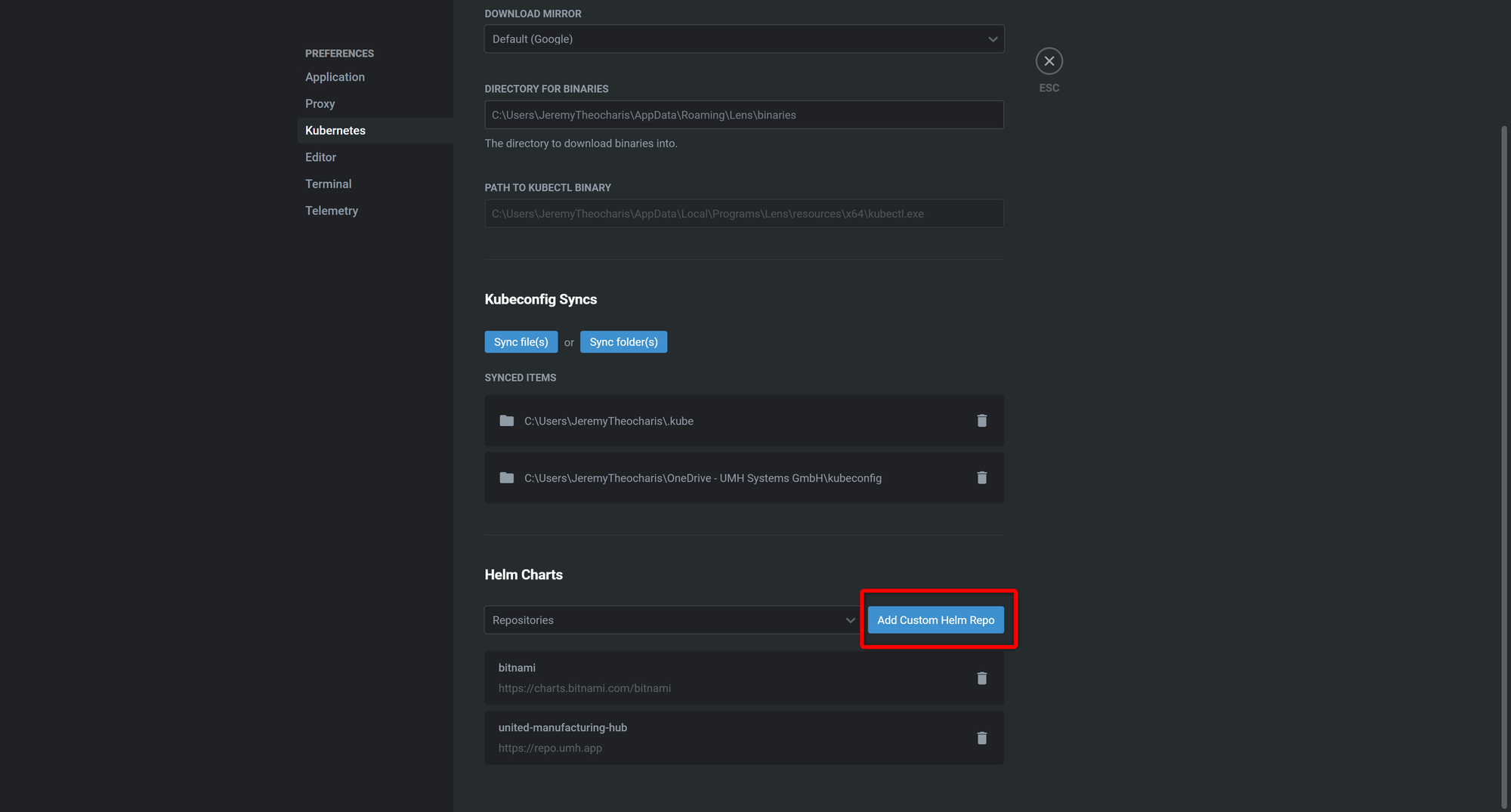
In Lens, go to "Files" and then select "Preferences".
-
In the preferences window, navigate to the "Kubernetes" tab.
-
Under the "Helm Charts" section, click the "Add custom helm repo" button.
-
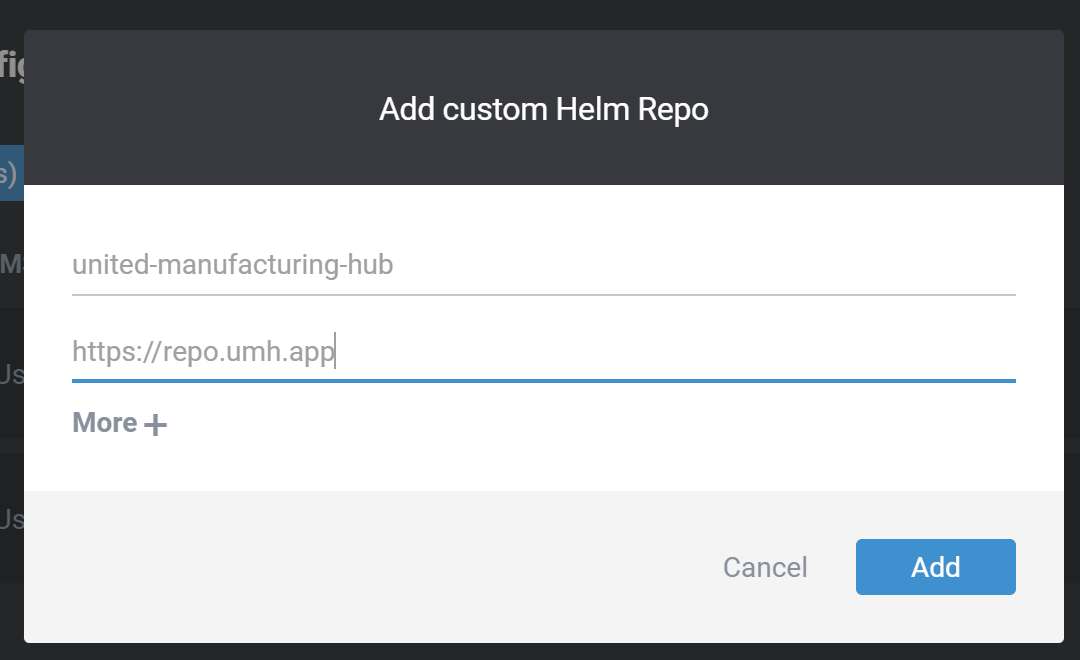
In the "Add custom helm repo" dialog, enter a name for the repository in the "Name" field. We commonly use "united-manufacturing-hub".
-
In the "URL" field, enter the URL for the UMH Helm Repo: https://repo.umh.app.
-
Click the "Add" button to add the repository.
-
Restart Lens.
Option 2
- Install Helm on your computer running UMHLens (on Windows in combination with WSL2):
- Add the United Manufacturing Hub Helm Repo:
- Get repository updates:
- Restart UMHLens (make sure to also close it in the system tray).
By following these steps, you can easily add the United Manufacturing Hub Helm Repo to OpenLens / UMHLens and start using it to manage your Kubernetes applications.